


Smart Functions for Heating Solutions
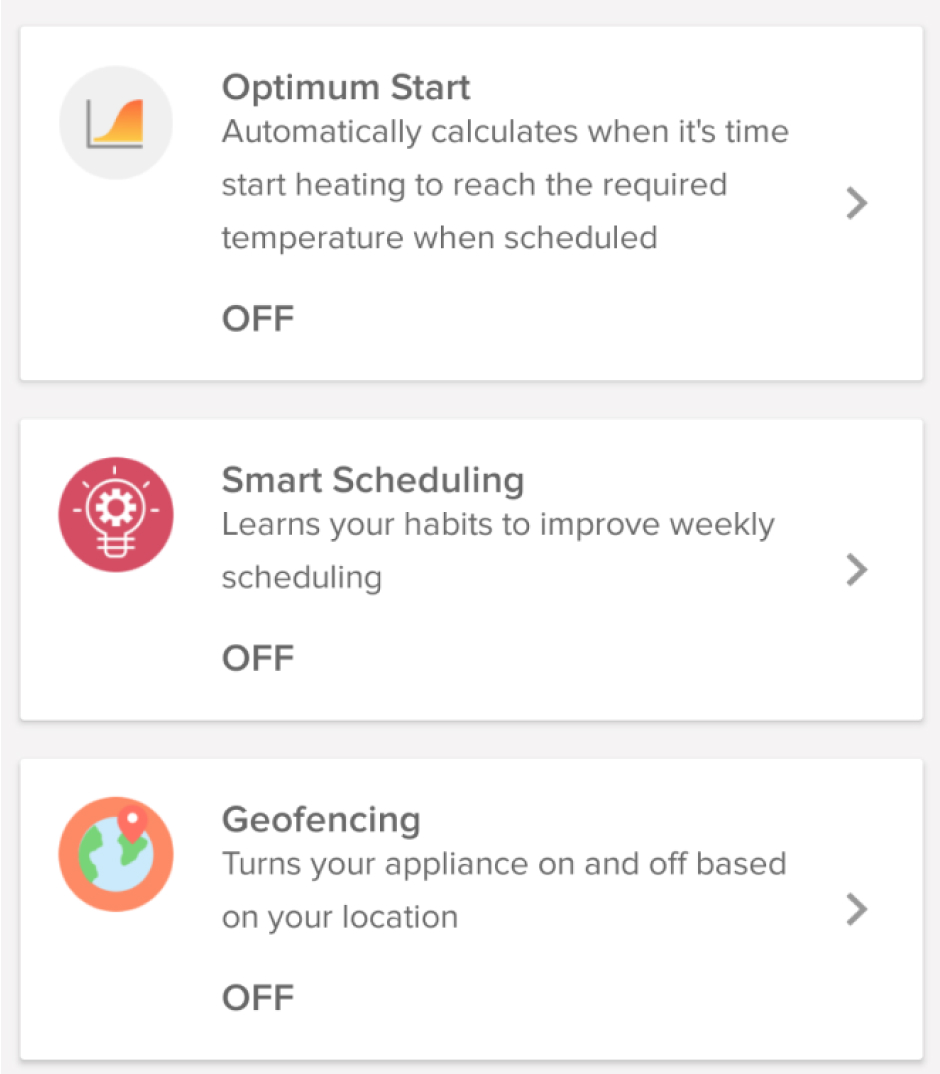
The app’s smart functions use artificial intelligence to give you the best solution to your needs.
• Optimum start to preheat your home, according to its thermal characteristics.
• Smart Scheduling for carefree comfort. The system learns your habits and selfadjusts to meet your changing needs.
• Geo-fencing to adjust the temperature of your home based on your location and turn the system on and off automatically when needed.
ARISTON NET:
Home gets smarter, life gets simpler.
The easy way to comfort and energy saving.
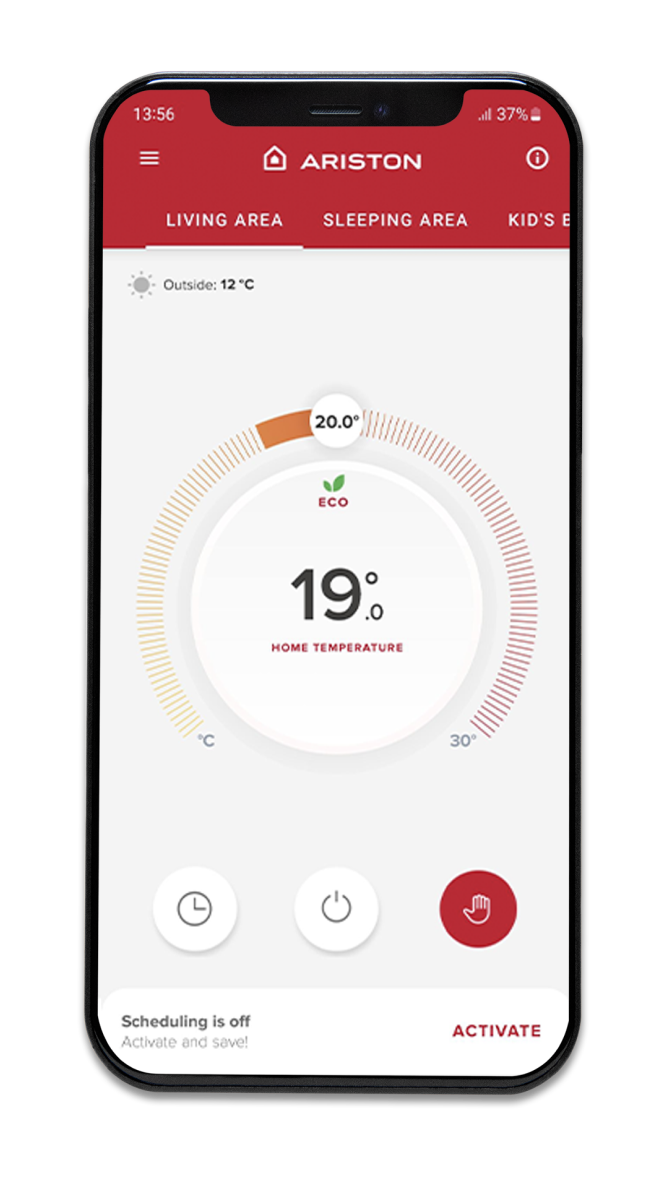
Ariston NET is the smart app to manage your thermal comfort solutions that offers you easy control and prompt assistance, enabling energy saving for a more sustainable way of living.
EASY CONTROL
Comfort is always at your fingertips, wherever you are
Your home gets ready to welcome you at any time with Ariston NET, the app does all you need and its smart functions use artificial intelligence to understand your habits and needs.
Manage and control your Ariston products easily and wherever you are:
• Set a schedule.
• Change operation mode.
• Control your heating and hot water temperature.
• Adjust your indoor temperature based on your location.
• Ensure your heating is on only when you need it.
DISCOVER ALL THE FUNCTIONS OF ARISTON NET
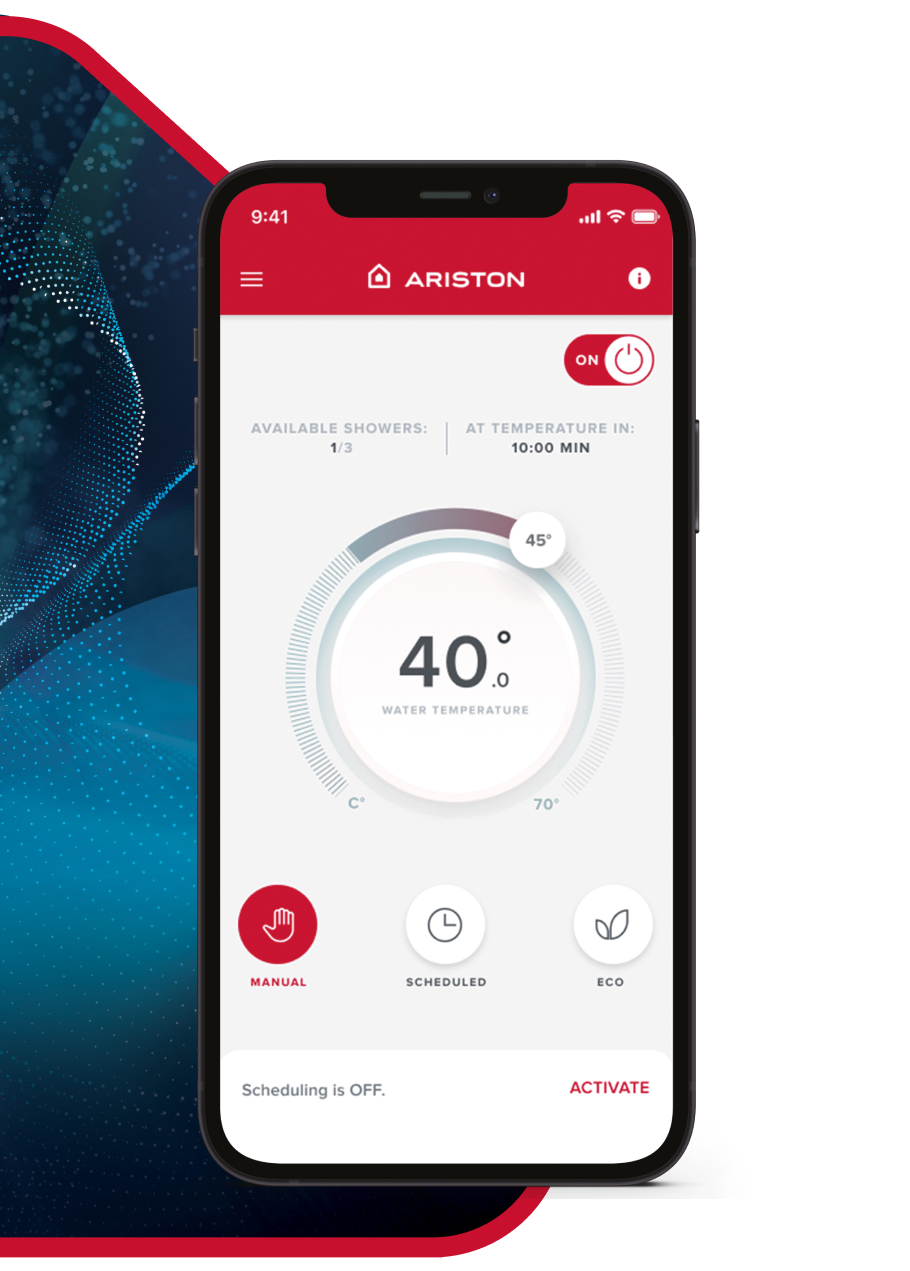
WHEN YOU CONNECT A WATER HEATER TO ARISTON NET:
/Easy control
Temperature setting
Operating modes
Programming
Advanced appliance settings
Voice control
/Energy saving
Energy monitoring
Energy advice
/Prompt assistance
Error notification
Find nearest Service Centre
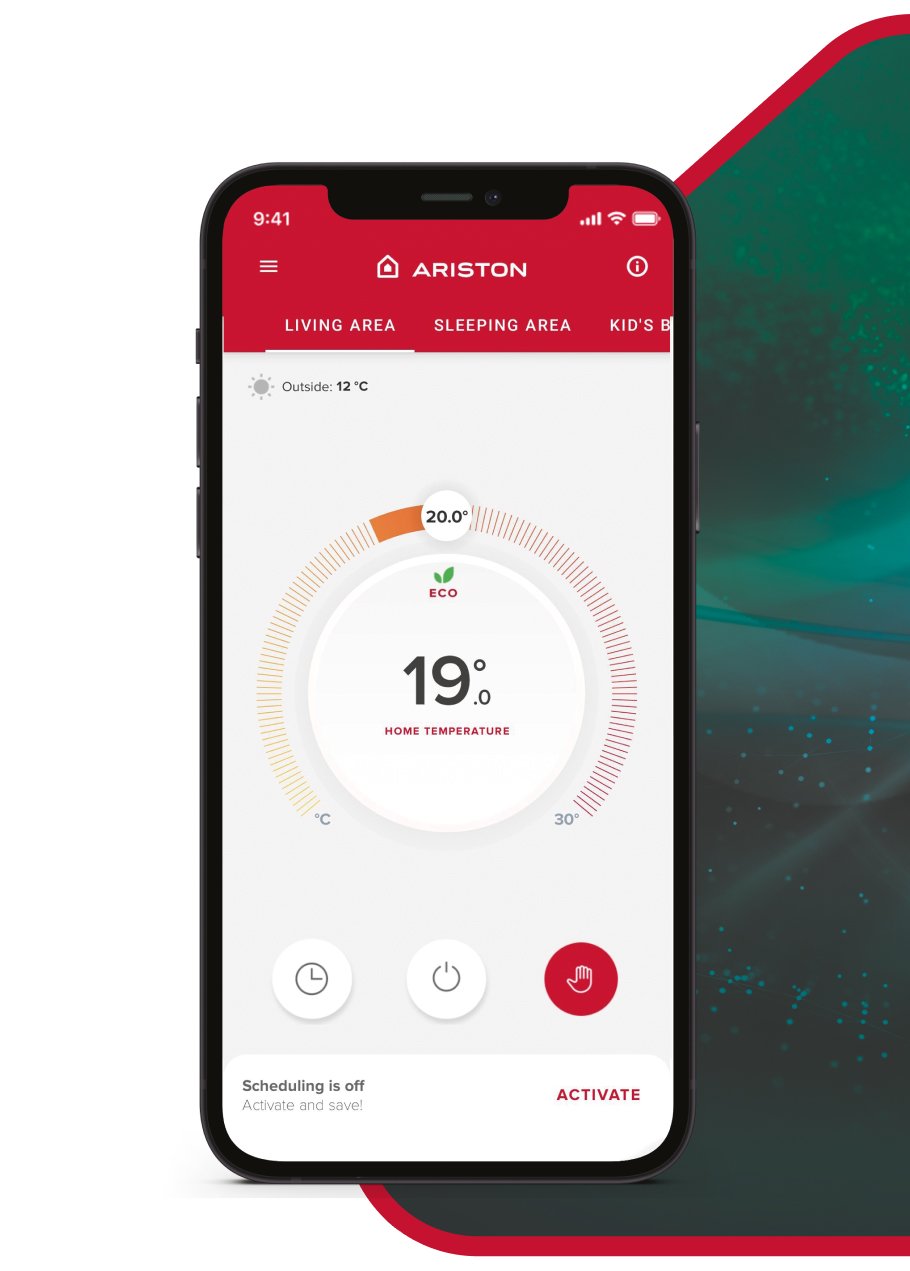
WHEN YOU CONNECT A HEATING SOLUTION TO ARISTON NET:
/Easy control
Temperature setting
Operating modes
Smart Programming
Geo-fencing
Optimum start Smart scheduling Hot water management
Advanced appliance settings
Voice control
/Energy saving
Energy monitoring
Energy advice
Proactive saving
Emailed energy report
/Prompt assistance
Error notification
Find nearest service centre
Service centre contact details
VOICE CONTROL FOR AN EVEN MORE COMFORTABLE EXPERIENCE.
- Switch the heating on
- Raise the temperature in the house
- Turn the heating off
Ariston NET is designed to provide you with maximum comfort and ensure seamless operation and compatibility with
leading IoT solutions, including Apple HomeKit, Amazon, Alexa, and Google Assistant.
You’ll control all your connected products. Just say a word!
SAVE UP TO 25% OF ENERGY
Your smart home does it for you
Save on your bills by monitoring your energy consumption and avoid energy waste
by remotely controlling your heating and water heating systems.
Ariston NET is the best way to learn how to improve your energy consumption:
it provides energy reports and tips so you can be more aware and build good habits saving up to 25% of energy!*
* Estimated saving up to 25% on daily basis, compared to Ariston standard mechanical products.
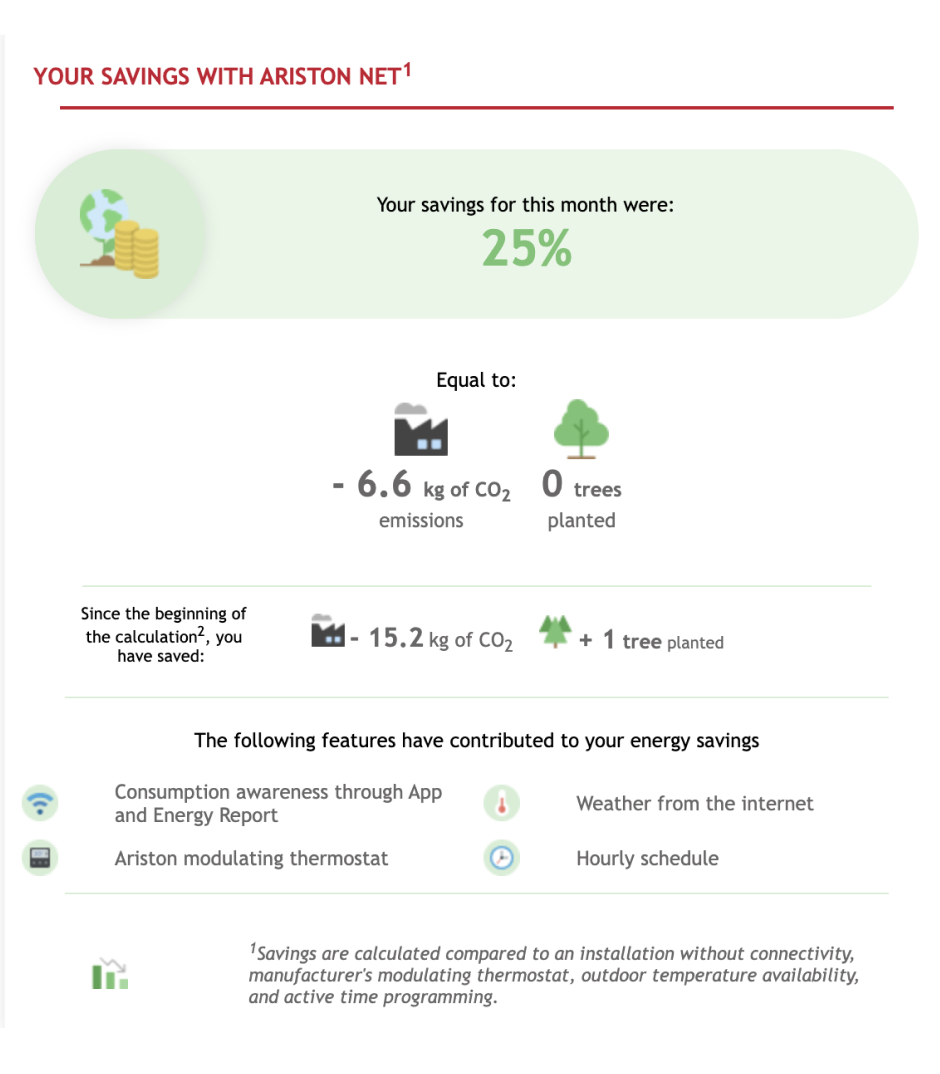
If you connect a heating solution you will receive each month a personalized report via email on the amount of energy and CO2 saved and its equivalent in trees planted, as well as useful advice for increasing your energy savings. A more sustainable future starts with you, and it has never been more convenient!
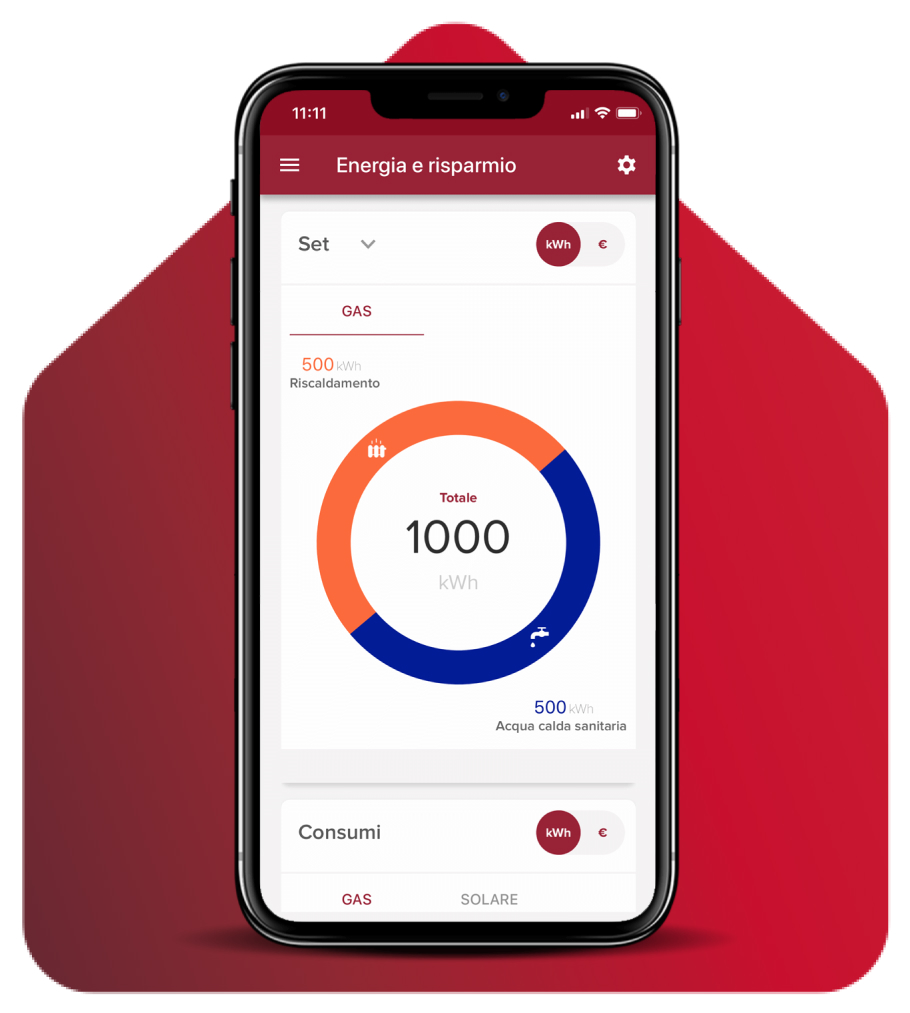
SMART HOME MEANS COMFORT AND SUSTAINABILITY
Meet your coach for energy saving
Ariston NET is your coach for energy usage and sustainability, the best way to learn how to improve your energy consumption thanks to simple
proactive pieces of advice based on your specific needs.
A greener future starts from here, with great tips from a team of experts on how to lower your environmental impact.
*For heating systems savings are calculated between a conventional product and a condensing one equipped with an Ariston programmable smart thermostat, outdoor sensors, and the Ariston NET app. For water heaters equipped with Ariston NET the comparison is done with a mechanical water heater.
PROMPT ASSISTANCE
Always by your side
Get real time notifications in case of system failure and effortlessly find all the information you need:
• Error code and description to facilitate technical support.
• All the details on the nearest service centre.
A smart way to get prompt assistance, avoid and correct errors as quickly as possible, and achieve the peace of mind you deserve

REMOTE ASSISTANCE WITH ACTIVE CARE
Achieve the next level of Service
Ensuring your home comfort is in our DNA.
Discover our service excellence with the advanced functions of Ariston NET:
- 24/7 Remote Assistance
- Product settings without even coming to your home.
- Active Care powered by Artificial Intelligence to prevent potential issues
Activate Ariston NET remote assistance service and receive more information on the solutions available for your smart home.
Contact us
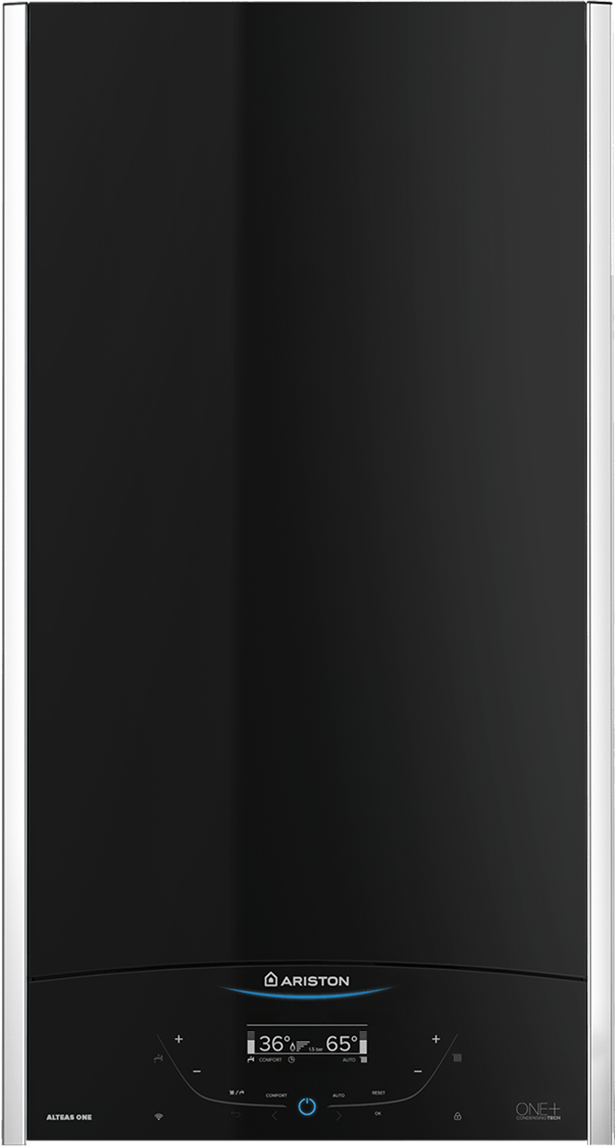
SMART CONTROLS
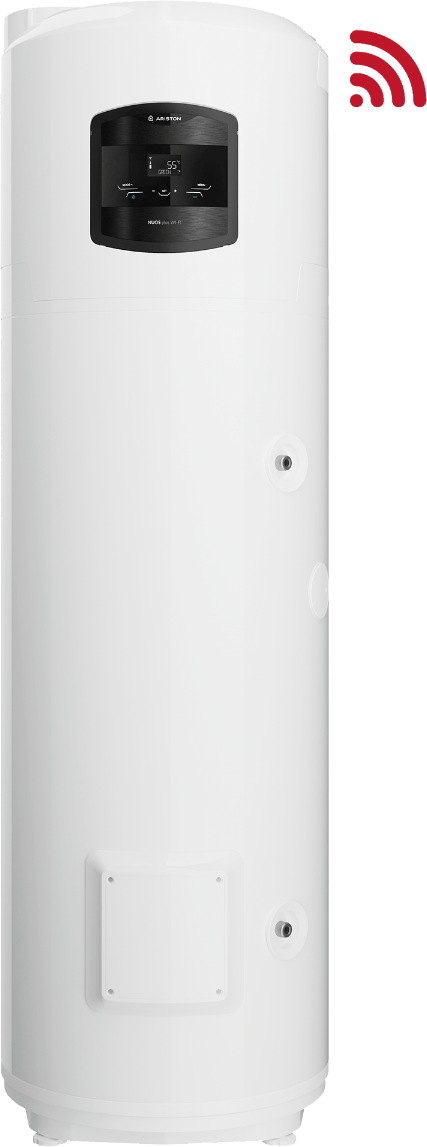
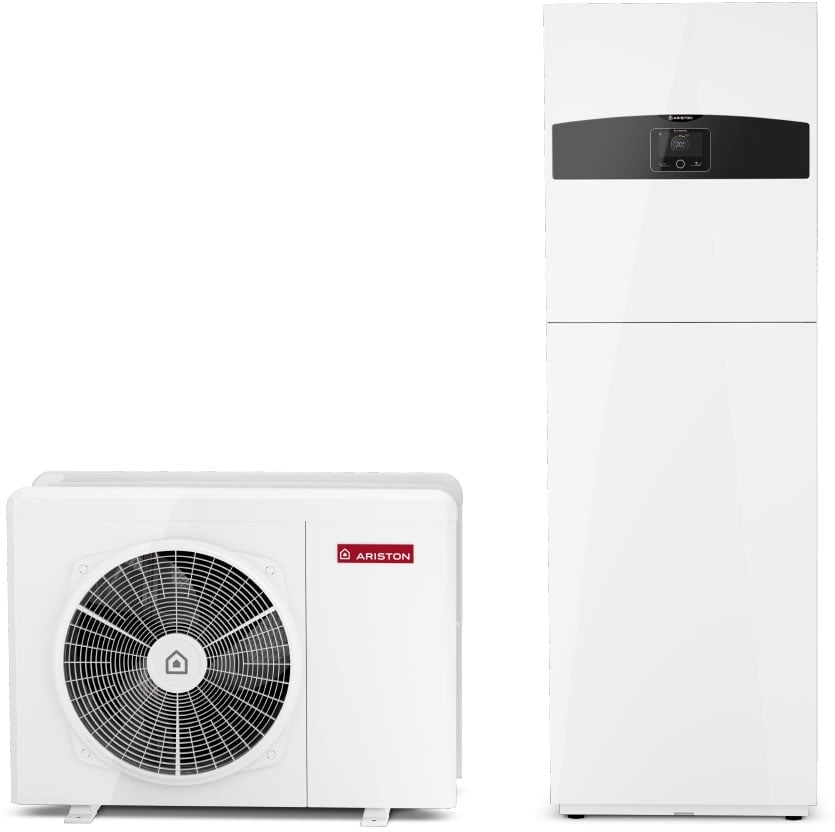
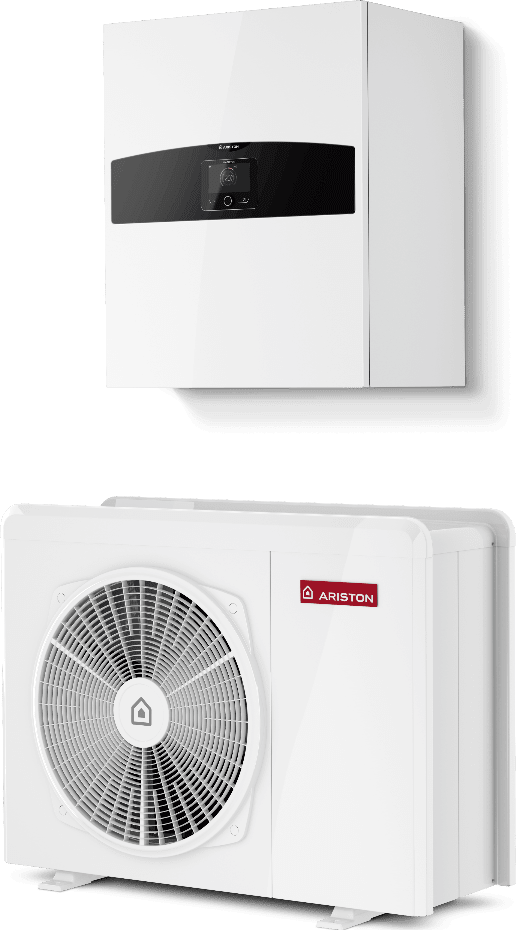
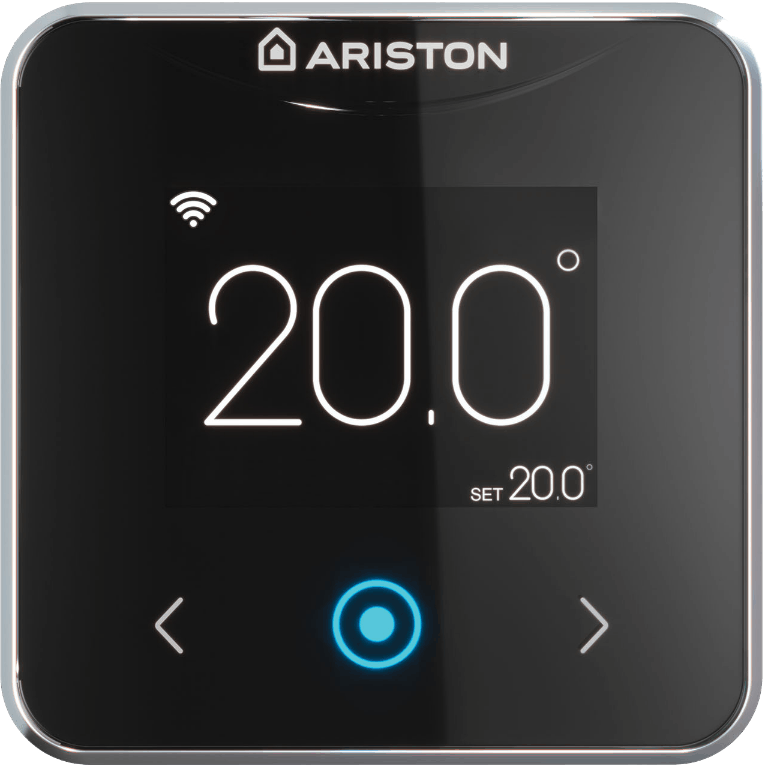
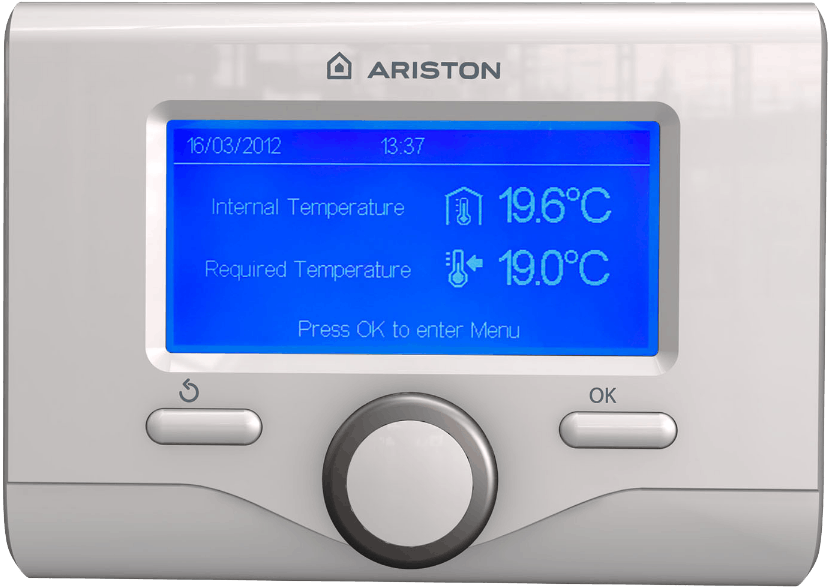
All the convenience of remotely controlling your Ariston products: Connect your appliance via one of Ariston’s latest generation smart thermostats and controls.
- Smart thermostats
Do you need help?
-
Here’s what you can do with Ariston NET!Ariston NET is the app designed to manage heating and water heating systems in a simple and intuitive way. Through remote control via smartphone or voice commands, it allows you to set and schedule the temperature of the environment and domestic hot water, optimise energy consumption thanks to personalised suggestions and detailed reports, activate smart functions that adapt the operation of systems to user habits, and receive quick assistance with notifications in case of malfunctions.
-
Can I use the app to control my water heater or home heating?
For most products:
– Check the box: Look at the box that your water heater or home heating system came in. If it says it works with the app, then you’re good to go!
– Look for the Wi-Fi symbol: Check if there is a small Wi-Fi symbol on the control panel of your water heater or heating system. That symbol means it can connect to the app.If your home heating system doesn’t have a Wi-Fi symbol, don’t worry! You might be able to add an accessory that allows it to connect to Wi-Fi. If you’re not sure, ask a trusted technician. They can help you figure out if your heating system can connect to the app and what you might need.
Why use the app?
Ariston Net is the intelligent app for managing thermal comfort solutions that offers simple control and timely assistance, allowing energy savings for a more sustainable way of life. -
What things do I need to have to use the app with my water heater or heating system?
It’s pretty simple! Here’s what you need:
– A smartphone: you’ll need a smartphone, such as an Android or an iPhone.
– The right software: If you have an Android phone, it must be running Android version 5 or higher. If you have an iPhone, it must be running iOS version 13 or later.
– 2.4 GHz Wi-Fi: Your home Wi-Fi network must be set to 2.4 GHz. This is a common Wi-Fi setting.
– Check the password encryption method of your WiFi network: not all products may support WPA3 or later; we suggest that you set it to WPA2/mixed mode.
– If you are trying to connect a battery-operated water heater, make sure it is connected to electricity because the Wi-Fi function is only available with electricity. Also be sure to use the adapter (or stabiliser) that comes with the product. -
I just had a new water heater or a new heating system installed. What should I do now?
Welcome! Here’s how to get started:
– Download the app: First, you need to download the app on your phone. Go to the app store (such as the Google Play Store for Android phones or the Apple App Store for iPhone) and search for the app Ariston Net. Then, download and install it.
– Create an account: Open the app and you’ll see an option to create a new account. You’ll need to enter your email address and create a password.
– Confirm your account: After creating your account, you will receive an email. Click the link in that email to confirm your account.
– Sign in: Now go back to the app and sign in using your email address and password.
– Connect your product: Once you sign in, the app will guide you through the steps to connect your water heater or heating system to your Wi-Fi network. Just follow the instructions on the screen!
– If you are trying to connect a battery-operated water heater, make sure it is connected to electricity because the Wi-Fi function is only available with electricity. Also be sure to use the adapter (or stabiliser) that comes with the product.
Keep the Quick Start Guide (QSG) handy: The Quick Guide provided with the product contains important information, in particular on how to activate the ‘Access Point’. Keep it handy, in case you need it! On this web page you will also find videos with the steps to follow specific to your product. -
What should I do if I changed my Wi-Fi modem, network name, or password?
If you change your Wi-Fi (for example, buying a new Modem or changing your network name or password), the product will no longer know how to connect to the Internet, so you’ll need to reconnect your product. If you open the app, it will automatically detect that your product is offline and will suggest that you proceed with the reconfiguration. Follow all the steps to complete the operation. For more information, check the QSG included with your product. You can also find it at the top of this page. This guide contains the most important steps to quickly get your water heater online.
-
How can I allow my family or friends to use the app to control our product?
Here’s how to share access:
– The people you want to add must first have their accounts on the app. If they don’t already have it, they’ll have to create one directly from the app. Make sure they have also confirmed their subscription by confirming on the link in the confirmation email they will receive.
– Open the app and look for a section in the menu called ‘Manage Guests’. This is where you can add people.
– On the ‘Manage Guests’ page, you can add their accounts. This gives them permission to use the app to control your product.Remember that only the person who originally configured the app can add or remove guests.
-
How do I know if my product is compatible with voice assistants?
Some products can work with voice commands, but not all of them! Here’s how to find out if yours can:
– Open the voice assistant app: Start by opening the app for your voice assistant (such as the Alexa app or the Google Home app).
– Start the configuration: look for the section where you add new devices or Skill/Action.
– Sign in to your product account: The voice assistant app will ask you to sign in to your Ariston Net account.
– See if your product shows up: If your product appears in the list of things you can control, it means it works with voice control! If it doesn’t appear, it’s not compatible.
Why some products work and others don’t: Newer products are more likely to work with voice control. -
I have a new smartphone. How can I continue to control my water heater or heating system with the app?
Don’t worry, moving your app is easy!
Here’s what you need to do:
– Install the app: Go to the app store on your new phone (such as Apple’s App Store or Google Play Store) and download the app.
– Sign in: Open the app and use the same email address and password that you used on your old phone to log in.
– Everything stays the same: once you log in, all your settings and information will be just as they were on your old phone. You don’t have to configure anything anymore!
– What happens if you have forgotten your password? If you can’t remember your password, don’t worry! On the login screen, there’s a button that says ‘Forgot Password’. Follow the instructions: Select that button and the app will guide you through the steps to reset your password. -
What are some practical tips for the efficient use of space heating and water systems?You can find some practical tips for optimising your consumption directly from the app by opening the menu, visiting the “Energy and savings” section and clicking on “Energy Tips”. Every day you can visit this page for new tips.
-
What is ‘Programmed Mode’ and how do I activate it?
The ‘Programmed Mode’ allows you to set a schedule for your heating or water heater so that you can set a higher temperature at certain times and lower at others, such as when you are sleeping or away from home. You can create a plan for each day of the week and even copy the same plan to other days, so you don’t have to start all over again.
You can also save several customised plans, based on your preferences.For most electric water heaters, you can choose two times of the day when you have water at a certain temperature, while heat pump water heaters allow you to keep the temperature at a ‘comfort’ or ‘reduced’ level for a certain period of the day. Similarly, for room heating, you can choose which ‘comfort’ or ‘reduced’ temperature to maintain at different times of the day.
How to activate it:
– Look for the ‘Programmed Mode’ button on the main page of your app and select it.
– Then, go to the ‘Schedule’ section in the app menu.
– Here you can set the times and temperatures you want. -
How is my personal data processed?Personal data is processed in accordance with the most recent privacy regulations. You can find more details related to the processing of your personal data in the privacy policy. Just log in to the app, select the ‘Manage profile’ section and then click on ‘View the privacy policy’.
-
How can I resolve all my questionsFor further questions and insights, please refer to the full FAQ available on our dedicated website.
-
-


